LLM Inference on OVH MKS: Connect IDEs and Web UIs
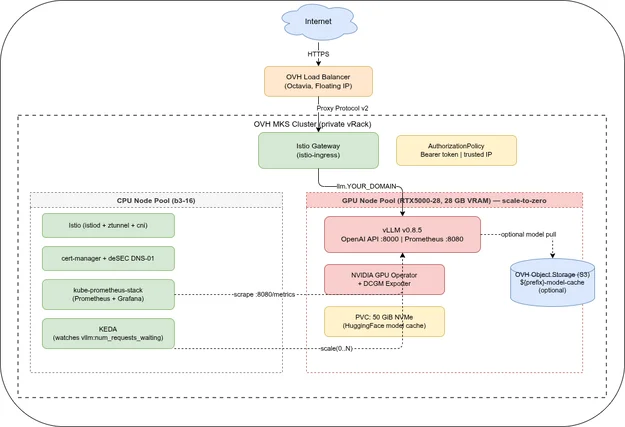
The first four parts of this series deployed a vLLM inference endpoint at https://llm.YOUR_DOMAIN/v1, protected by a Bearer token, running on an OVH RTX5000-28 GPU node. This part shows how to connect coding assistants, web UIs, and other OpenAI-compatible clients to that endpoint.
Series navigation:
- Full guide: LLM Inference on OVH MKS: The Complete Guide
- Part 1 — Introduction
- Part 2 — Terraform, Ansible, and Deployment
- Part 3 — Models, AWQ, and OpenAI API
- Part 4 — Prometheus, Grafana, and KEDA
- Part 5 — Connect IDEs and Web UIs (this post)
- Part 6 — Self-hosted LLM Gateway
The common pattern🔗
vLLM exposes an OpenAI-compatible REST API. Any tool that supports a custom OpenAI base URL works with this setup. The three values you need are the same for every tool:
| Setting | Value |
|---|---|
| Base URL | https://llm.YOUR_DOMAIN/v1 |
| API key | YOUR_VLLM_API_KEY (from vault_vllm.yml) |
| Model | exact HuggingFace model ID, e.g. hugging-quants/Meta-Llama-3.1-8B-Instruct-AWQ-INT4 |
The model name must match exactly what vLLM reports. You can verify it at any time:
curl https://llm.YOUR_DOMAIN/v1/models \
  -H "Authorization: Bearer YOUR_VLLM_API_KEY"
Web UIs🔗
Browser-based interfaces are the right choice for colleagues who do not use a code editor — anyone working primarily with documents, spreadsheets, or presentations. The experience is similar to ChatGPT, Claude, or other well-known web-based AI tools, but running on your own infrastructure. No installation is required on the user side: share the URL and credentials, and they are ready to go from any browser. The IDE integrations below are primarily aimed at developers, though anyone comfortable setting up a code editor can use them.
Open WebUI🔗
Open WebUI is the most widely used self-hosted web UI for OpenAI-compatible endpoints. It provides a ChatGPT-style interface, conversation history, and multi-user support.
Quick start with Docker:
docker run -d \
  --name open-webui \
  -p 3000:8080 \
  -e OPENAI_API_BASE_URL="https://llm.YOUR_DOMAIN/v1" \
  -e OPENAI_API_KEY="YOUR_VLLM_API_KEY" \
  -v open-webui:/app/backend/data \
  ghcr.io/open-webui/open-webui:main
Open http://localhost:3000 and create an admin account on first launch. Open WebUI automatically fetches the model list from /v1/models — your hugging-quants/Meta-Llama-3.1-8B-Instruct-AWQ-INT4 model appears in the model selector without any manual configuration.
If you want to add or change the endpoint later, go to Admin Panel → Settings → Connections → OpenAI API and update the URL and key there.
Deploying Open WebUI on the same MKS cluster (optional):
# Add to your Ansible vars or apply directly with kubectl
apiVersion: apps/v1
kind: Deployment
metadata:
  name: open-webui
  namespace: open-webui
spec:
  replicas: 1
  template:
    spec:
      containers:
        - name: open-webui
          image: ghcr.io/open-webui/open-webui:main
          env:
            - name: OPENAI_API_BASE_URL
              value: "http://vllm.vllm.svc.cluster.local:8000/v1"
            - name: OPENAI_API_KEY
              valueFrom:
                secretKeyRef:
                  name: vllm-creds
                  key: VLLM_API_KEY
          ports:
            - containerPort: 8080
Running Open WebUI inside the cluster uses the internal Kubernetes Service address (vllm.vllm.svc.cluster.local:8000) instead of routing traffic through the public Ingress again. The API key from the Secret is still required — vLLM enforces its own token check independently of the Istio gateway layer.
Continue.dev (VS Code + JetBrains)🔗
Continue.dev is an open-source coding assistant that works in both VS Code and JetBrains IDEs. It uses a shared ~/.continue/config.yaml for both.
Add an entry under models:
# ~/.continue/config.yaml
models:
  - name: LLaMA 3.1 8B (self-hosted)
    provider: openai
    model: hugging-quants/Meta-Llama-3.1-8B-Instruct-AWQ-INT4
    apiBase: https://llm.YOUR_DOMAIN/v1
    apiKey: YOUR_VLLM_API_KEY
The provider: openai setting makes Continue treat the endpoint as OpenAI-compatible regardless of the actual model. The apiBase overrides the default OpenAI URL with your vLLM address.
After saving the file, the model appears in the Continue sidebar model selector. The same config is picked up automatically by the JetBrains plugin — no separate configuration needed.
Zed🔗
Zed has built-in AI assistant support with a configurable OpenAI-compatible backend. Add the following to ~/.config/zed/settings.json:
{
  "language_models": {
    "openai": {
      "version": "1",
      "api_url": "https://llm.YOUR_DOMAIN/v1",
      "available_models": [
        {
          "name": "hugging-quants/Meta-Llama-3.1-8B-Instruct-AWQ-INT4",
          "max_tokens": 4096
        }
      ]
    }
  },
  "assistant": {
    "default_model": {
      "provider": "openai",
      "model": "hugging-quants/Meta-Llama-3.1-8B-Instruct-AWQ-INT4"
    },
    "version": "2"
  }
}
Zed reads the API key from the environment variable OPENAI_API_KEY rather than from settings.json. Set it in your shell profile:
export OPENAI_API_KEY="YOUR_VLLM_API_KEY"The max_tokens value should match the vllm_max_model_len from vars.yml (default 4096).
Cline (VS Code)🔗
Cline is an open-source agentic VS Code extension. Unlike chat-focused assistants, Cline can read and edit files, run terminal commands, and interact with your project directly based on a natural-language task description.
Configure it via the Cline settings panel (gear icon in the Cline sidebar), or add directly to your VS Code settings.json:
{
  "cline.apiProvider": "openai-native",
  "cline.openAiBaseUrl": "https://llm.YOUR_DOMAIN/v1",
  "cline.openAiApiKey": "YOUR_VLLM_API_KEY",
  "cline.openAiModelId": "hugging-quants/Meta-Llama-3.1-8B-Instruct-AWQ-INT4"
}An 8B model works for well-defined, bounded tasks: explaining code, writing tests for a known function, straightforward single-file edits. As an agent (multi-file edits, terminal commands, multi-step tasks), an 8B model reaches its limits quickly — instruction-following degrades on complex sequences and context is often lost across tool calls. Do not expect Claude Code-level agentic quality from an 8B model. For more capable agentic use, Qwen2.5 14B AWQ (~8 GB VRAM) fits the RTX5000-28 and offers noticeably stronger reasoning; see Part 2 for the VRAM guide and how to switch models.
If the GPU node has been scaled to zero by KEDA, the first request after a period of inactivity will trigger GPU node provisioning. This takes 3–5 minutes before any response is returned. Most IDE extensions use a short default timeout and will report an error during this window. Set your extension’s request timeout to at least 360 seconds, or keep minReplicaCount: 1 in the KEDA ScaledObject if a warm response is always required.
ownCloud Infinite Scale (oCIS)🔗
ownCloud Infinite Scale includes an AI Assistant service (contextwrite / context_chat) that connects to any OpenAI-compatible backend. Once configured, users get AI-powered text assistance (summarise, rewrite, translate) directly inside ownCloud documents.
The AI services are configured via environment variables in the oCIS deployment. The relevant service is contextwrite for document assistance:
# oCIS environment variables (set in your oCIS compose or Kubernetes deployment)

# Use the OpenAI-compatible provider
CONTEXTWRITE_SETTINGS_BACKEND_TYPE=owncloudai

# Your vLLM endpoint (without /v1 suffix — oCIS appends the path itself)
OCIS_OPENAI_API_URL=https://llm.YOUR_DOMAIN

# API key
OCIS_OPENAI_API_KEY=YOUR_VLLM_API_KEY

# Model ID — must match what vLLM reports via /v1/models
CONTEXTWRITE_SETTINGS_CHAT_MODEL=hugging-quants/Meta-Llama-3.1-8B-Instruct-AWQ-INT4
For the context_chat service (document Q&A / search assistant):
CONTEXT_CHAT_BACKEND_TYPE=owncloudai
CONTEXT_CHAT_OWNCLOUDAI_LLM_MODEL=hugging-quants/Meta-Llama-3.1-8B-Instruct-AWQ-INT4
After restarting the oCIS services, go to Administration → AI in the oCIS admin panel to verify the connection and enable the assistant for users.
The AI Assistant services (contextwrite, context_chat) were introduced in ownCloud Infinite Scale 5.0. Classic ownCloud 10.x uses a separate AI app from the ownCloud Marketplace.
The variable names above are based on ownCloud Infinite Scale 5.x documentation. Exact names may differ between oCIS releases — verify against the ownCloud developer docs for your specific version before deploying.
Any OpenAI-compatible client🔗
The same base_url / api_key / model triplet works with any client that supports a custom OpenAI endpoint:
| Tool | Type | Config location |
|---|---|---|
| Continue.dev | VS Code + JetBrains | ~/.continue/config.yaml |
| Zed | Editor | ~/.config/zed/settings.json |
| Cline | VS Code agent | VS Code settings.json |
| Open WebUI | Web UI | OPENAI_API_BASE_URL env var or Admin → Connections |
| ownCloud Infinite Scale | Document platform | OCIS_OPENAI_API_URL env var |
| aider | Terminal | --openai-api-base + --openai-api-key flags |
| LangChain / LlamaIndex | Python | openai.base_url parameter |
All source code is in the companion repository at codeberg.org/nis-aleks/ovh-llm-inference.
Related reading:
- Part 1 — Introduction — use cases, architecture, cost framing
- Part 2 — Terraform, Ansible, and Deployment — infrastructure setup
- Part 3 — Models, AWQ, and OpenAI API — model selection and VRAM guide
- Part 4 — Prometheus, Grafana, and KEDA — observability and scale-to-zero
Series
LLM Inference on OVH MKSIndex and reading guide for a six-part series on self-hosting LLM inference on OVH MKS — vLLM, GPU node pools, Terraform, observability, clients, and a gateway.
When to self-host an LLM on Kubernetes, why vLLM, and what the stack looks like on OVH MKS. Covers use cases, cost framing, and architecture. Part 1 of 6.
Provision an OVH MKS GPU node pool with Terraform, deploy vLLM, Istio, and cert-manager with Ansible, and walk through a first deployment. Part 2 of 6.
Which models fit on a 16 GB GPU, why AWQ is required for 7B+ models on the RTX5000-28, and how to use the OpenAI-compatible API from Python. Part 3 of 6.
Scrape vLLM and DCGM metrics with kube-prometheus-stack, visualise TTFT and tokens/s in Grafana, and autoscale to zero with KEDA. Part 4 of 6.
Connect Continue.dev, Zed, Cline, Open WebUI, and ownCloud Infinite Scale to a self-hosted vLLM endpoint on OVH MKS. Per-client setup guide. Part 5 of 6.
LiteLLM gateway on top of vLLM: per-user API keys, budget limits, and automatic fallback to commercial APIs when the local GPU node is cold. Part 6 of 6.